Transcribe Voice Memos to Text Free: Easy Ways
Have you ever recorded a voice memo because you had an idea you did not want to forget?
Maybe it was a business idea, a lecture, an interview, a meeting, a personal reminder or simply something you wanted to remember later.
The problem usually comes afterwards.
You now have the recording, but you need the information in written form.
Listening to the same recording again and typing every word yourself can take a lot of time. This is where voice transcription becomes useful.
If you are looking for a way to transcribe voice memos to text free, you can now convert many types of voice recordings into written text using speech to text technology.
In this guide, I will explain what voice memo transcription means, how it works, how to transcribe voice memos from an iPhone or Android phone, what audio formats you can use, how to improve transcription accuracy and how you can use the resulting text for work, school, content creation and everyday tasks.
What Does It Mean to Transcribe a Voice Memo to Text?
Transcribing a voice memo simply means converting spoken words from an audio recording into written words.
For example, imagine that you record yourself saying:
“I need to prepare the physics lesson for Monday, send the report to the department and remember to call the supplier.”
Instead of listening to the recording every time you need that information, a transcription tool can turn the recording into written text.
You can then read it, edit it, copy it, save it or use it somewhere else.
Modern speech to text tools can process audio recordings and produce editable text without requiring you to type everything manually.
This is particularly useful when you have many voice recordings that contain information you need to organise.
Why Transcribe Voice Memos to Text?
Voice recording is convenient because speaking is often faster than typing.
You can open your phone, press record and speak naturally.
However, audio recordings are not always easy to search, edit or reuse.
A written transcript solves that problem.
Here are some common reasons people convert voice memos to text.
1. Turn Quick Ideas Into Written Notes
Ideas often come when you are away from your computer.
You may be walking, driving as a passenger, travelling or doing something else.
Instead of trying to type everything on your phone, you can record your idea.
Later, you can transcribe the voice memo and turn the recording into a proper note.
2. Convert Lectures Into Text
Students can use voice recordings to capture lectures and discussions.
Afterwards, the recording can be converted into text, giving the student a written version to review.
However, always make sure you have permission before recording another person’s lecture or conversation.
3. Transcribe Interviews
Journalists, researchers, students, content creators and business owners often record interviews.
Typing an interview manually can take hours.
A speech to text tool can provide a starting transcript that can then be reviewed and corrected.
4. Create Meeting Notes
A recorded meeting contains a lot of information.
Instead of listening to the entire recording repeatedly, you can convert the audio into text and search through the transcript.
You can then identify decisions, tasks, names and important points more easily.
5. Create Content From Your Voice
This is one of my favourite uses of voice transcription.
Sometimes speaking is easier than writing.
You can simply talk about an idea, transcribe the recording and then turn the transcript into a blog post, social media post, video script or newsletter.
This makes the process of creating content much faster.
How to Transcribe Voice Memos to Text Free
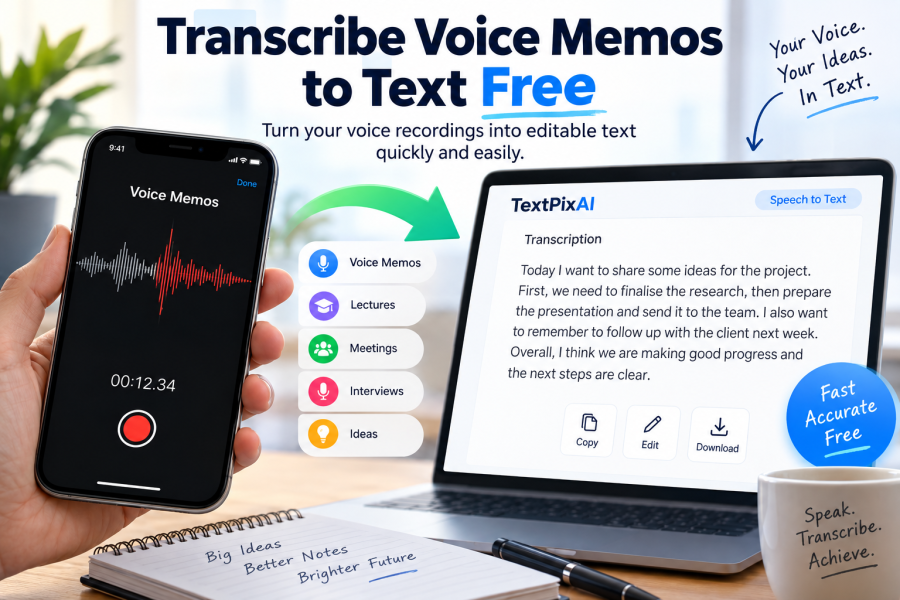
The easiest method is to use an online speech to text tool.
With TextPixAI, for example, you can upload an audio file and use its speech to text functionality to turn the recording into editable text. TextPixAI describes its speech to text tool as a way to upload an audio file and receive a ready to edit transcript. (TextPixAI)
Step 1: Record Your Voice Memo
First, record your voice using your phone, computer or another recording device.
Try to record in a reasonably quiet environment.
Clear audio normally produces better transcription results.
Step 2: Save or Export the Recording
After recording, save the voice memo to your device.
If you are using an iPhone, the recording may be available through the Voice Memos application.
You can use the share option to save or send the recording as a file.
Step 3: Open a Speech to Text Tool
Go to a speech to text service such as TextPixAI.
TextPixAI combines writing, image generation, text to speech and speech to text tools on one platform, so you can move from a recording to written content without necessarily switching between several different services. (TextPixAI)
Step 4: Upload Your Voice Memo
Upload the audio recording to the speech to text tool.
The exact upload process may depend on the device and file format you are using.
Step 5: Let the Tool Transcribe the Recording
The speech recognition system processes the audio and converts the spoken words into text.
The time required can depend on the length and quality of the recording.
Step 6: Review the Transcript
This step is important.
Do not assume that every automatic transcript will be perfect.
Listen to the original recording while checking the text, particularly when the recording contains names, technical terms, accents, numbers or several people speaking.
Step 7: Copy and Use Your Text
Once you have checked the transcript, you can copy the text and use it for your notes, article, report, script, research or other work.
Can You Transcribe iPhone Voice Memos to Text Free?
Yes.
An iPhone voice memo is an audio recording, and it can be transcribed using speech recognition tools that accept its audio format.
Many current transcription services specifically support iPhone Voice Memos and M4A files.
The basic process is simple:
- Open the Voice Memos app.
- Find the recording.
- Tap the sharing option.
- Save or send the recording as an audio file.
- Open a speech to text tool.
- Upload the recording.
- Generate the transcript.
- Check the text for mistakes.
- Copy or save the final transcript.
You do not necessarily need to convert an iPhone recording to MP3 first. Some transcription tools accept M4A files directly.
How to Transcribe Voice Memos on Android
The process is similar on Android.
Different Android phones use different recording applications, so the exact steps can vary.
Generally, you can:
- Open your voice recorder.
- Select the recording.
- Tap Share or Export.
- Save the audio file.
- Open an online speech to text tool.
- Upload the audio.
- Generate the transcript.
- Review the result.
Many Android recording applications save recordings as M4A, MP3 or WAV files, although the exact format depends on the application and device.
What Audio Formats Can Be Transcribed?
The format supported depends on the transcription service.
Common audio formats used for voice recordings include:
- M4A
- MP3
- WAV
- AAC
- OGG
- FLAC
- WMA
- OPUS
M4A is particularly common for recordings made with Apple devices, while Android recording applications can produce several different formats. Some online transcription services support many of these formats directly.
If your file is not accepted, check whether the transcription service supports that format before converting it.
Is Free Voice Memo Transcription Really Free?
This depends on the service.
The word “free” does not always mean unlimited.
Some services offer free transcription but place limits on recording length, file size, number of files or monthly usage.
For example, current free transcription services use different limits, including restrictions based on file size or recording length.
So before uploading a large recording, check the service’s current free usage limits.
For someone who only needs to transcribe a short voice note occasionally, a free option may be enough.
If you regularly transcribe long interviews, lectures, podcasts or meetings, you may eventually need a service with a larger allowance.
How Accurate Is Voice Memo Transcription?
Speech to text technology has improved significantly, but no transcription system should be treated as perfect.
The quality of the transcript depends on several factors.
Audio Quality
A clear recording is much easier for speech recognition software to understand.
Background Noise
Traffic, music, fans, television and conversations in the background can make transcription more difficult.
Speaking Clearly
If the speaker talks clearly, the transcript will generally be easier to understand.
Accents and Pronunciation
Different accents and pronunciation patterns can sometimes result in incorrect words.
Technical Vocabulary
A recording about physics, medicine, engineering, law or another specialised subject may contain words that a transcription system misunderstands.
Multiple Speakers
When several people speak at the same time, transcription becomes more difficult.
This is why you should always check important transcripts against the original audio.
How to Get Better Transcription Results
If you want a cleaner transcript, the quality of your recording matters.
Here are some simple things you can do.
Record in a Quiet Place
If possible, reduce background noise before you start recording.
A quiet room is usually better than a busy street, restaurant or crowded room.
Keep the Microphone Close
You do not need to put the phone directly next to your mouth, but avoid placing it too far away.
A stronger, clearer voice signal generally gives the speech recognition system more useful audio to work with.
Speak Naturally
There is no need to speak like a robot.
Speak normally, but try not to mumble.
Avoid Talking Over Other People
If you are recording a conversation, allow people to finish speaking before responding where possible.
This can make the resulting transcript easier to follow.
Use Good Recording Equipment
You do not always need expensive equipment.
Even a modern smartphone can produce usable voice recordings when used correctly.
Check Names and Numbers
Names, email addresses, mathematical terms, abbreviations and numbers deserve special attention during proofreading.
For example, a transcription could confuse a person’s name with an ordinary English word.
What Can You Do With a Voice Memo Transcript?
Once your voice recording has been converted into text, the possibilities become much greater.
You can:
- Edit the text
- Search for specific words
- Copy important sections
- Create meeting notes
- Write an article
- Create a social media post
- Prepare a video script
- Create study notes
- Summarise an interview
- Extract important ideas
- Create a report
- Turn spoken ideas into an email
- Save information in a document
- Translate the text into another language
This is one reason I find speech to text useful.
The recording is no longer just an audio file.
It becomes editable information.
Transcribe Voice Memos for Content Creation
If you create content regularly, voice transcription can become part of your writing process.
For example, imagine you want to write an article about “10 ways students can study physics effectively”.
Instead of opening a blank document and staring at the screen, you could record yourself explaining your ideas.
You might talk for five or ten minutes.
That recording can then be converted into text.
You can clean up the transcript, organise the ideas and turn it into a complete article.
This approach can make writing feel more natural because you are simply talking about something you already know.
It can also help when you have a good idea but do not have the patience to type it immediately.
Voice Memo to Text for Students
Students can use transcription for many academic tasks.
For example, a student could record personal explanations while studying.
Later, the recordings can be converted into text and organised into revision notes.
A student could also use transcription to turn an approved recording of a lecture or discussion into searchable study material.
However, transcription should support learning rather than replace it.
Reading a transcript is not the same as understanding a subject.
After transcription, take time to review, organise and understand the material.
Voice Memo to Text for Teachers and Researchers
Teachers and researchers often have ideas that are easier to explain verbally than in writing.
A quick voice recording can capture these thoughts before they disappear.
The transcript can then be edited into:
- Lesson notes
- Research notes
- Article ideas
- Interview transcripts
- Project notes
- Research questions
- Presentation material
- Reports
For researchers, transcription can also reduce the amount of time spent manually typing recorded interviews.
Always consider consent, confidentiality and institutional requirements when dealing with recorded research participants.
Voice Memo Transcription for Business
Businesses can also benefit from converting voice recordings into text.
A business owner may record an idea while travelling.
A manager may record instructions.
A salesperson may record notes after meeting a client.
A consultant may record observations after a project visit.
Instead of leaving these recordings buried in a phone, they can be converted into searchable text and organised into useful documents.
That simple change can make information much easier to retrieve later.
Is It Better to Type or Record Your Ideas?
It depends on the situation.
Typing gives you immediate written text.
Recording gives you freedom to speak quickly.
If you type slowly, recording may be much faster.
For example, speaking for five minutes can produce a large amount of information without the interruption of constantly looking at a keyboard.
This does not mean voice recording should replace typing completely.
The two methods can work together.
Record first.
Transcribe next.
Edit afterwards.
That can be a very practical workflow.
Free Voice Memo Transcription vs Manual Transcription
Manual transcription gives you complete control over every word.
But it can be very slow.
You have to:
- Play the recording.
- Pause it.
- Type what you heard.
- Play it again.
- Correct mistakes.
- Continue until the recording is finished.
For a long recording, this can become tiring.
Automatic transcription changes the process.
The software creates the first version of the transcript, and you review it afterwards.
This is usually much faster than starting from an empty page.
Can You Convert M4A to Text?
Yes.
If your voice memo is saved as an M4A file, you can use a transcription service that accepts M4A audio.
This is particularly useful for iPhone recordings because Voice Memos commonly uses M4A audio files.
Some transcription services accept M4A directly, meaning you do not need to convert the recording to MP3 before transcription.
The important thing is to check the supported formats of the transcription tool you are using.
What About Privacy?
Think about what you are uploading before using any online transcription service.
A voice recording may contain private conversations, personal information, business information or confidential research material.
Before uploading sensitive audio, check the service’s privacy policy and understand how your recording is processed, stored and deleted.
For ordinary personal notes, this may not be a major concern.
For confidential business, legal, medical or research recordings, take additional care.
Why Use TextPixAI for Voice to Text?
TextPixAI is designed as an all in one AI platform that includes writing, image generation, text to speech and speech to text tools. Its speech to text feature allows users to upload audio and obtain an editable transcript. (TextPixAI)
That can be useful when you want to do more than simply transcribe a recording.
For example, you could turn your spoken idea into text and then continue working with that text using other content tools.
This creates a simple workflow:
Record → Transcribe → Edit → Create
Instead of typing an idea from scratch, you can start with your own voice.
Try the TextPixAI Speech to Text tool
Transcripts, captions and accessibility
A transcript is not only useful for you. If you publish audio or video, a text version makes it accessible to people who are deaf or hard of hearing and easier to search. The W3C's Web Accessibility Initiative explains how to write and publish transcripts and captions well. If your recordings include other people, get their permission before uploading, and read our guide to data privacy when using AI tools. To go the other way, from text to audio, see how to turn a blog post into audio with Text to Speech.
Related guides
Keep reading in this topic cluster:
Frequently Asked Questions
Can I transcribe voice memos to text free?
Yes. There are free voice transcription options available online and some devices also provide built in transcription features. However, free services may have limits on recording length, file size or usage.
How do I transcribe a voice memo to text?
Save or export your voice memo as an audio file, open a speech to text tool, upload the recording and generate the transcript. Always review the result for errors.
Can I transcribe an iPhone voice memo to text?
Yes. Export the recording from the Voice Memos app and upload the audio to a transcription service that supports the file format. M4A recordings can be processed directly by services that support M4A.
Can I transcribe Android voice recordings?
Yes. Android voice recordings can be transcribed when the recording is saved in a format supported by the transcription service.
Do I need to convert M4A to MP3 before transcription?
Not always. Many transcription services support M4A directly, so conversion may not be necessary.
Is voice transcription accurate?
It can be highly useful, particularly with clear recordings, but automatic transcription can still make mistakes. Background noise, accents, technical terms, multiple speakers and unclear speech can affect the result.
Can I use a voice transcript to write an article?
Yes. A transcript can provide the raw material for an article. You can remove repetition, organise the ideas, add headings and edit the text before publishing.
Can I transcribe a voice memo without typing?
Yes. Speech to text technology allows the spoken content of an audio recording to be converted into written text automatically, reducing the amount of manual typing required.
What is the difference between speech to text and voice transcription?
They are closely related terms. Speech to text generally describes the technology that converts spoken language into written words. Voice transcription usually refers to applying that technology to an existing voice recording.
Final Thoughts
If you regularly record ideas, lectures, interviews, meetings or personal notes, there is little reason to leave all that information trapped inside audio files.
Learning how to transcribe voice memos to text free can save time and make your recordings much more useful.
The process is straightforward.
Record your voice.
Save the audio.
Upload it to a speech to text tool.
Generate the transcript.
Then review and edit the text.
For short recordings and everyday tasks, this can be a much easier approach than manually typing every word.
And perhaps the biggest advantage is not simply getting a transcript.
It is what you can do with the transcript afterwards.
A voice memo can become a note.
A note can become an article.
An article can become a social media post.
A conversation can become meeting minutes.
An idea can become a project.
All you need to do is turn the voice into text first.
If you want to try it, you can start with the TextPixAI Speech to Text tool and turn your recording into editable text.