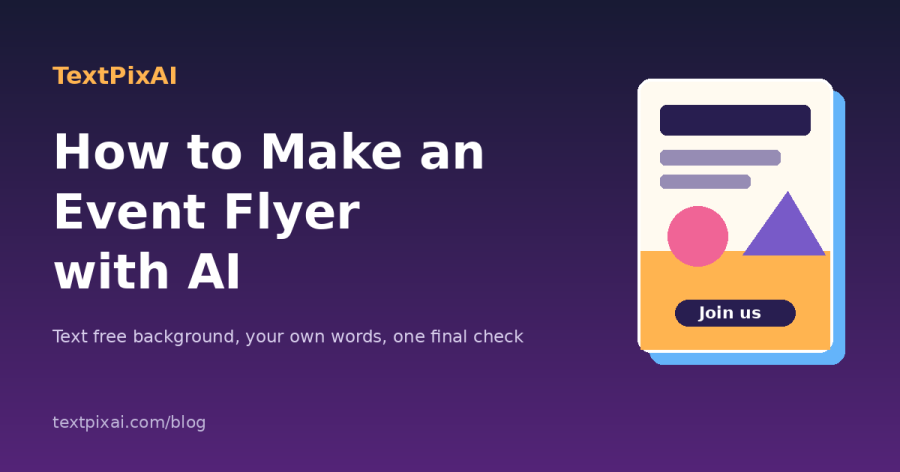
How to Make an Event Flyer with AI
A good event flyer does one job: it tells people what is happening, when and where, then makes them want to come. Whether you are promoting a church harvest, a school open day, a book club meeting or a weekend sale, the hard part is rarely the information. It is getting a picture that looks professional without hiring a designer. This guide shows how to make an event flyer with AI in a way that actually works: AI handles the background art and the wording while you control the details that must be right.
The examples use the TextPixAI AI Image Generator for the artwork and the AI Writer for the text, but the same steps work with most AI tools.
Why AI should make the picture, not the whole flyer
Many people type the whole event into an image generator, such as "flyer for a youth concert on Saturday 6pm at the community hall". The result can look impressive until you notice the date is misspelt and the hall's name has turned into random letters. Image generators are still unreliable at spelling, and a flyer with a wrong date is worse than no flyer.
The approach that works is to split the job in two:
- AI creates a text free background that sets the mood and leaves clear space for words.
- You add the words yourself in a simple editor, so every name, date, price and phone number is exactly right.
This takes a few extra minutes but saves you from reprinting a stack of flyers.
Step 1: Gather the event details first
Before you open any tool, write the facts down in one place. Adobe's guide to flyer design tips recommends checking that your flyer answers the five Ws: who, what, when, where and why. In practice, that means a short list like this:
- What: the name of the event in a few words.
- When: day, date and start time (and end time if it matters).
- Where: venue name and a landmark people will recognise.
- Who it is for: families, youth, small business owners, alumni and so on.
- Why come: the one thing that makes it worth the trip, such as a guest speaker, free entry or live music.
- What to do next: a phone number, a WhatsApp contact, a registration link or simply "all welcome".
Keep this list open and copy from it later instead of retyping.
Step 2: Write the flyer wording with AI
Flyers have very little space, so the words need to be short and clear. This is where an AI writing tool helps. Paste your list into the AI Writer or AI Chat with a prompt like this:
Prompt: "Write flyer text for this event. Give me five headline options of no more than six words, one supporting line of no more than twelve words and a short call to action. Keep the tone warm and friendly. Do not change any dates, times or names. Event details: [paste your list]."
Pick the headline you like best. One that can be read from across a room beats a clever one that needs a second look. Our guide on writing Instagram captions with AI uses the same idea of short, specific prompts.
Step 3: Generate a background with space for text
Now create the artwork. The key is to describe the mood and the layout, then tell the generator not to add any writing. A reliable prompt formula is:
[Subject or theme] + [style] + [colours] + [where to leave empty space] + "no text, no letters, no words"
Here are two examples you can adapt:
- Church or community harvest: "Warm festive background with baskets of yams, maize and fruit along the bottom edge, soft golden light, flat illustration style, large empty cream area in the top half for text, no text, no letters, no words."
- Small business weekend sale: "Modern minimal background with shopping bags and gift boxes on the right side, coral and navy colours, smooth gradient on the left with lots of empty space, no text, no letters, no words."
Generate several versions and choose the one with the cleanest empty area. If the generator keeps putting objects where you want text, say exactly where the space should be, for example "left half completely empty". Avoid realistic faces, because a generated face could resemble a real person.
Step 4: Choose the right shape and size
Decide where people will see the flyer before you finalise it, because the shape matters:
- Printed flyer: A5 (148 x 210 mm) is a common handout size and A4 (210 x 297 mm) suits notice boards. Both are portrait.
- WhatsApp Status or Instagram Stories: a tall portrait image, such as 1080 x 1920 pixels, fills the screen.
- Instagram or Facebook feed: a square 1080 x 1080 or a portrait 1080 x 1350 image works well.
For print, image resolution matters more than it does on a phone. Augustana College's guide to setting up a print ready file advises using images of at least 300 dpi at full size and exporting a print PDF. Test print one copy before ordering a batch and keep important details away from the edges.
Step 5: Add the text in a simple editor
Open your background in any free design tool, such as Canva, Adobe Express or a phone photo editor that supports text. Then build the flyer in this order:
- Headline in the largest, boldest font, placed in the empty space.
- Date, time and venue in a clear second size. These are what people look for after the headline.
- Supporting line in smaller text, if there is room.
- Call to action and contact at the bottom, such as "Register on WhatsApp: [number]".
Use no more than two fonts and make sure the text stands out from the background. The W3C's guidance on minimum text contrast is written for websites, but its core point applies to flyers too: text needs enough contrast with what is behind it so that people with weaker eyesight can read it. Dark text on a light area or white text on a dark area is safest. If part of the background is busy, add a plain box behind the words.
Step 6: Check every detail before you share
This is the step that matters most. Read the finished flyer slowly against your list from Step 1:
- Is the day of the week correct for the date?
- Is the time right, including am or pm?
- Is the venue spelt correctly, with a landmark if needed?
- Does the phone number or link work? Call it or tap it to be sure.
- Are any prices or entry fees correct?
- Has the AI sneaked any stray letters or odd symbols into the background?
Ask one other person to look at it too, as fresh eyes catch mistakes you will read straight past.
A worked example: a community book club launch
Imagine a small reading group launching in a local library. The details list reads: "Book club launch, Saturday [date], 4pm, Central Library reading room, free entry, call [number] to reserve a seat."
The AI Writer suggests five headlines and the organiser picks "Read, Meet, Talk". The supporting line becomes "A friendly book club for anyone who loves stories." The image prompt is "Cosy illustration of a stack of colourful books and a cup of tea at the bottom of the frame, warm orange and teal palette, flat style, large empty space in the top two thirds, no text, no letters, no words."
After choosing the best of four images, the organiser adds the headline at the top, the date and venue below it and the call to action at the bottom. One A5 version goes on the library notice board and one portrait version goes on WhatsApp Status. Every detail on the flyer was typed by a person rather than guessed by an image model.
Common mistakes to avoid
- Asking the AI to write the details into the image. Keep the picture text free and add words yourself.
- Too much information. A flyer is an invitation, not a programme.
- Busy backgrounds. If you cannot read the headline at a glance, simplify the image or add a plain panel.
- Passing off AI art as a real photo. If an image could be mistaken for a real venue or real food you will serve, be honest about it. Our guide to labelling AI generated content explains simple ways to do this.
If you also design graphics for a website, the same "text free background" method is explained in our guide to creating blog featured images with AI, and our Instagram carousel guide shows how to keep a matching style across several images. For a wider view of promoting a small business, see how to use AI for marketing.
Frequently asked questions
Can AI make a complete flyer with text for me?
Some tools try, but spelling inside AI images is still unreliable, especially for names, dates and phone numbers. It is quicker and safer to generate a text free background and type the details yourself.
What should I write on an event flyer?
Cover what the event is, when and where it is, who it is for, why people should come and how to respond. Leave out anything not needed to make someone decide to attend.
What size should an event flyer be?
A5 and A4 are common for print. For WhatsApp Status and Stories use a tall portrait image, and for a feed post use a square or 4:5 portrait image. Make a separate version for each place you plan to share it.
Is it fine to use AI images on a church or school flyer?
Generally yes for illustrations and backgrounds, but follow your organisation's rules and do not present AI art as a photo of a real place or event.
Make your next flyer
Write your event details down now, then try the AI Writer for the headline and the AI Image Generator for a text free background. If you make flyers often, compare the TextPixAI plans to find one with enough credits for regular events.